Various Authors
How to Improve This Project
2025
Contribute to collaborative texts
Other Interesting docs in the Archive
Series 5: Writings of Ted K — Subseries: Refutation Documents
Series 8: FBI Files (original order)
Eco Terror: The Violent Agenda to Save Nature
Technophobe — The Unabomber Years
The New York Times and the Washington Post
Organise the Table of Contents
Contribute to collaborative texts
-
Frequently Asked Questions about Ted Kaczynski (send questions or topics you think should be covered)
Upload new texts
The first step for adding a text is just deciding if it’s got a lot of complicated formatting, like has a lot of URLs and superscript that you want to preserve.
-
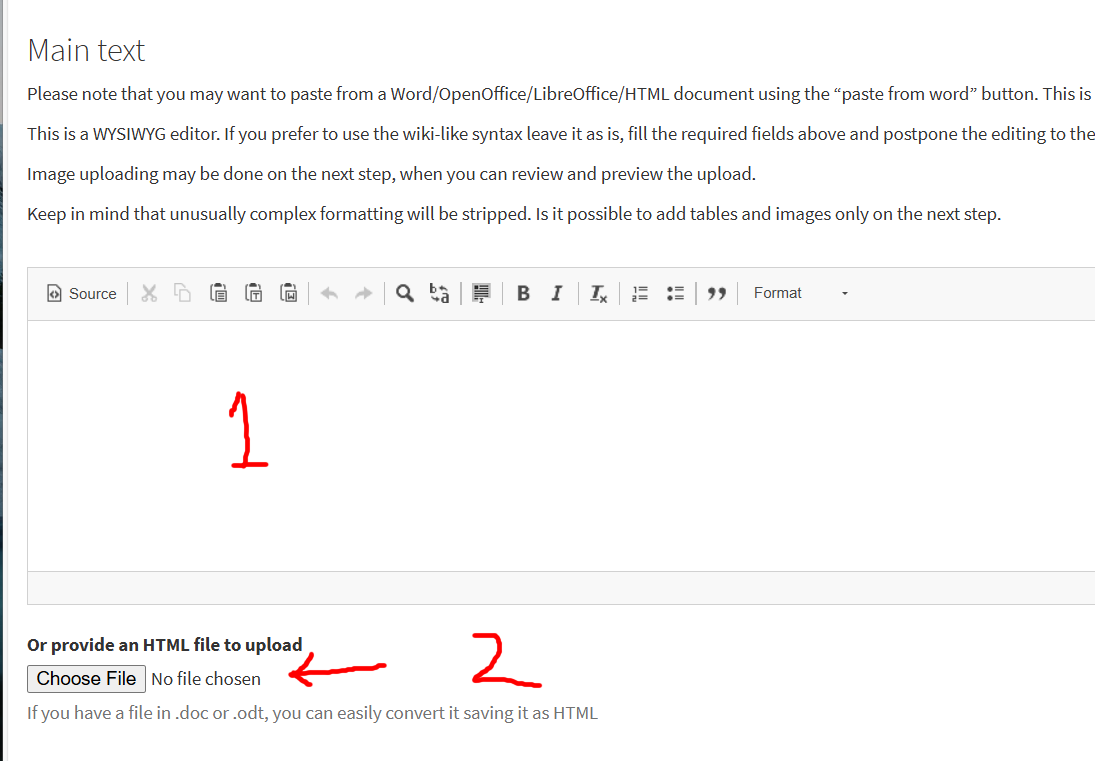
If it’s a short essay with no superscript or hyperlinks then you can just copy paste it into the edit box marked no.1 in the image below.
-
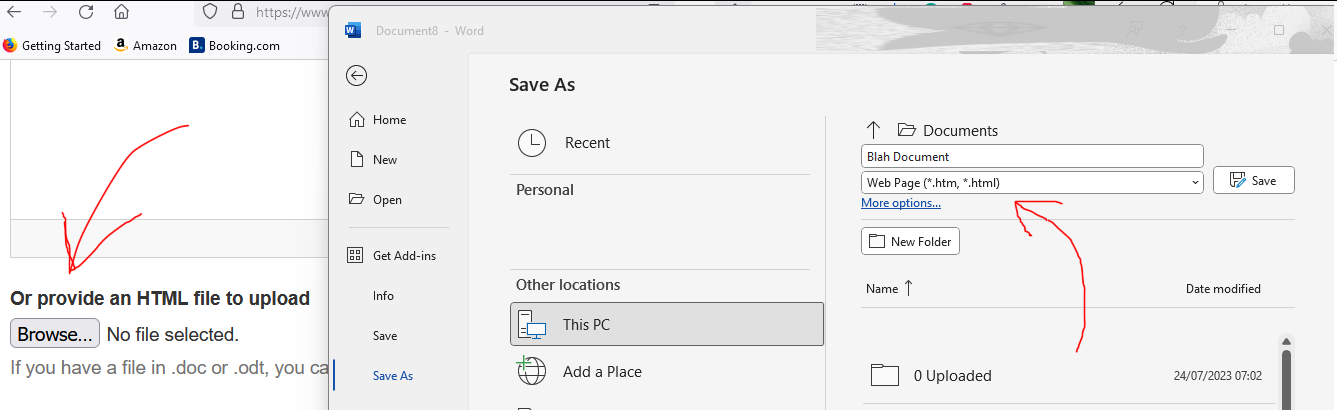
If it is complicated, you’ll want to maybe save it in microsoft word as a .htm file, then drag and drop into the uploader where the arrow is pointing next to no.2:
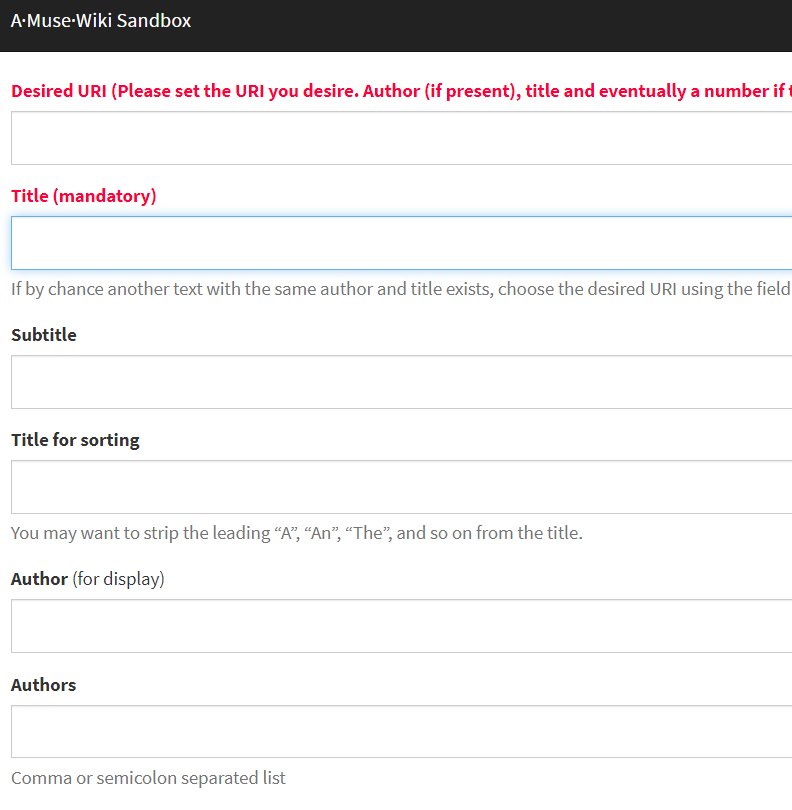
Then you can fill in this metadata, don’t worry if you get it wrong as you can always do it later by fixing the ‘# metadata at the top’.
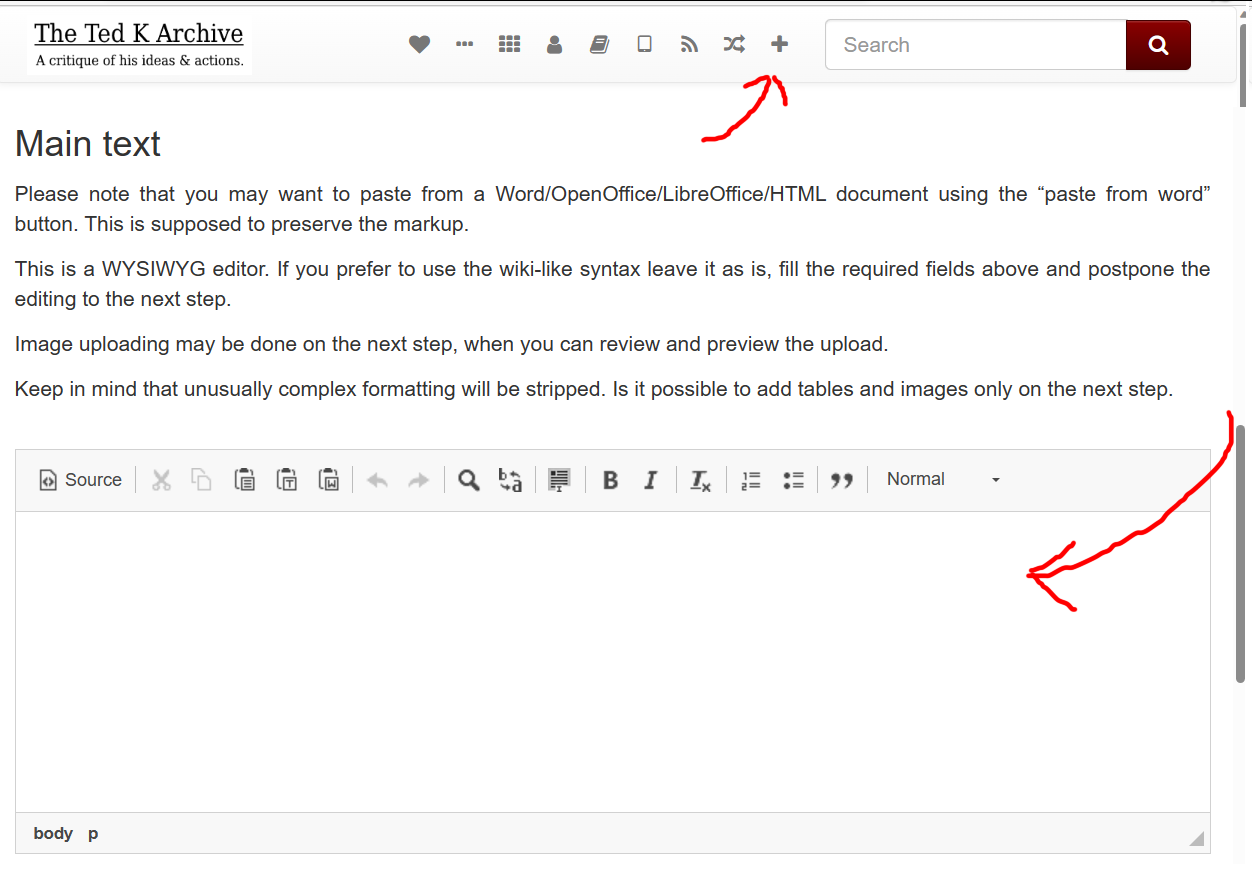
So, if it’s a simple text with not a lot of formatting you can simply copy paste the text into this box to convert like italic text into the website’s amusewiki markup. You just have to click the plus button at the top, scroll down, copy paste your text into the box, then scroll down again and hit ‘Create’.
With docs with a lot of already formatted footnotes or hyperlinks, you can use the html uploader feature. So, like copy pasting your web page into a word document and saving the document as a .htm and dragging and dropping into this box on the ‘add new text’ page:
Converting photoscans
The best photoscan converter out there I think is ABBYY fine reader, so that’s the conversion method I’ll explain, but you can find other converters online also that this method will broadly be useful for.
-
Open ABBYY Fine Reader, click OCR Editor and select the PDF or image file you want to convert.
-
Click edit image in the top left corner of main window where you’re looking at the PDF.
-
Check if the scan needs certain things fixing like cropping and deskewing, using the edit image options on the right. The most important one is “Resolution”, click “Detect Optimal Resolution”, select “all pages” in the drop down options and click “Apply”.
-
Select the right language for converting at the top in the middle.
-
In the drop down menu items in the top left click “Tools” > “Options”. Click DOCX on the left under “Document Type”. Make sure the Document layout option says “Editable copy”. Uncheck all the boxes except “Keep pictures”, then close that Options box.
-
In the drop down menu items in the top left click “File” > “Save As” > “Microsoft Word Document”.
-
Go from top to bottom fixing heading levels and marking errors. Holding down on the ‘CTRL’ key, tapping the ‘up’ key, marking paragraph break errors with ‘???’, the beginning of quotes with ‘@@@’ & end of quotes with ‘ ~’. All symbols within easy reach of the ‘up’ arrow key.
-
Find and replace ‘ ~’ with ‘£££’ so they don’t get wrapped in the ‘<verbatim>’ code when converted on vertopal.
-
Convert from DOCX to MUSE on vertopal.com
-
Open the MUSE file in a notepad, find and replace three space marks for 2 space marks, keep hitting ‘replace all’ and check with ‘find’ to make sure you’ve deleted all long multiple spaces.
-
Select all and copy paste into word.
-
Find paragraphs with two spaces at the beginning and replace with one space: ‘^p ‘ to ‘ ‘.
-
Find and replace paragraphs with one space at the beginning ‘^p ‘ to ‘$$$ ’
-
Find and replace ‘^p^p’ to ‘$$$’
-
Find and replace ‘^p’ to space ‘ ’
-
Find and replace ‘$$$’ to ‘^p^p’
-
Go through the document finding the ways vertopal has often mistakenly converted formatting into ‘<quote>’ & ‘ </quote>’ and delete in various ways.
-
Find and replace ‘£££’ to ‘^p</quote>’
-
Find and replace ‘@@@’ to ‘<quote>^p’
-
Go through the document finding and replacing ‘^p^p???’ with spaces, but make sure you catch variations like ‘^p^p^p’ and ‘-^p’.
-
Filled in all the text metadata on the amusewiki website and hit ‘Create’.
-
Copy paste into the amusewiki editing box under the ‘#metadata’ and check the ‘fix typography’ and ‘rearrange the footnote’ boxes, and hit preview.
-
Copy back into a notepad and go through the text finding and replacing some of the ‘- ‘ with ‘-’ & ‘— ‘ with ‘—’ to fix left over end of line breaks. Plus, looking for any footnote errors if there was a problem rearranging them, such as searching for “ and replacing with square brackets ‘[’.
-
Copy back into the edit box and hit preview again, and if everything looks good, hit ‘Save’ and you’re done.
Converting Digital PDFs
-
Convert from PDF to DOCX using Microsoft Office Word, Adobe Acrobat, vertopal or convertio. Some work better than others depending on the Digital PDF. Check that it preserved italics and there aren’t things like random spaces in the middle of words.
-
Click CTRL+F, and “Headings” to show what headings are marked. Scroll down the document checking headings are marked. Sometimes when you find a heading not marked you just need to find what style it shows as on the left, click “select all” and change to “heading 3”.
-
Go from top to bottom fixing heading levels and marking errors. Holding down on the ‘CTRL’ key, tapping the ‘up’ key, marking paragraph break errors with ‘???’, the beginning of quotes with ‘@@@’ & end of quotes with ‘ ~’. All symbols within easy reach of the ‘up’ arrow key.
-
Find and replace ‘ ~’ with ‘£££’ so they don’t get wrapped in the ‘<verbatim>’ code when converted on vertopal.
-
Convert from DOCX to MUSE on vertopal.com
-
Open the MUSE file in a notepad, find and replace three space marks for 2 space marks, keep hitting ‘replace all’ and check with ‘find’ to make sure you’ve deleted all long multiple spaces.
-
Select all and copy paste into word.
-
Find paragraphs with two spaces at the beginning and replace with one space: ‘^p ‘ to ‘ ‘.
-
Find and replace paragraphs with one space at the beginning ‘^p ‘ to ‘$$$ ’
-
Find and replace ‘^p^p’ to ‘$$$’
-
Find and replace ‘^p’ to space ‘ ’
-
Find and replace ‘$$$’ to ‘^p^p’
-
Go through the document finding the ways vertopal has often mistakenly converted formatting into ‘<quote>’ & ‘ </quote>’ and delete in various ways.
-
Find and replace ‘£££’ to ‘^p</quote>’
-
Find and replace ‘@@@’ to ‘<quote>^p’
-
Go through the document finding and replacing ‘^p^p???’ with spaces, but make sure you catch variations like ‘^p^p^p’ and ‘-^p’.
-
Fill in all the text metadata on the amusewiki website and hit ‘Create’.
-
Copy paste into the amusewiki editing box under the ‘#metadata’ and check the ‘fix typography’ and ‘rearrange the footnote’ boxes, and hit preview.
-
Copy back into a notepad and go through the text finding and replacing some of the ‘- ‘ with ‘-’ & ‘— ‘ with ‘—’ to fix left over end of line breaks. Plus, looking for any footnote errors if there was a problem rearranging them, such as searching for “ and replacing with square brackets ‘[’. For some complex errors you might run into you can consult this page: Rare AmuseWiki text markup problems & fixes
-
Copy back into the edit box and hit preview again, and if everything looks good, hit ‘Save’ and you’re done.
Converting EPUBs
-
Convert from EPUB to DOCX using convertio, Microsoft Office Word, Adobe Acrobat or vertopal. Some work better than others depending on the EPUB. Check that it preserved italics and there aren’t things like random spaces in the middle of words.
-
Click CTRL+F, and “Headings” to show what headings are marked. Scroll down the document checking headings are marked. Sometimes when you find a heading not marked you just need to find what style it shows as on the left, click “select all” and change to e.g. “heading 3”.
-
Fill in all the text metadata on the amusewiki website and hit ‘Create’.
-
Convert from DOCX to MUSE on vertopal.com
-
Copy paste into the amusewiki editing box under the ‘#metadata’ and check the ‘fix typography’ and ‘rearrange the footnote’ boxes, and hit preview.
-
Copy back into a notepad and go through the text finding and replacing any errors, such as if there’s a problem rearranging the footnotes, check for superscript formatting: ‘<sup>’ and replace with square brackets ‘[’. For some complex errors you might run into you can consult this page: Rare AmuseWiki text markup problems & fixes
-
Copy back into the edit box and hit preview again, and if everything looks good, hit ‘Save’ and you’re done.
Other tips
If I upload a book to the website and it gets the heading levels wrong, or in all caps, I copy paste it into a spreadsheet column, create a column of numbers to the left, then sort both by the text on the right and look for all the heading text beginning with ** which makes it easier to fix, seeing all the headings together.
Edit Live Texts
Error Correcting
Anyone can edit any text on the website.
If you’re busy and see a text with a lot of errors that need correcting you can simply add this tag to the #topics: half-finished error correcting.
You can use this topic tag to find texts that are a work-in-progress error correcting:
For example:
Copy Typing
If you see a text that someone only half copy-typed up and forgot to mark as ‘half-finished’, you can simply add this tag to the #topics: half-finished copy typing
You can use this topic tag to find texts that are a work-in-progress error correcting:
Requesting Uni Scans
Here’s the guide for requesting documents from Michigan Uni. Library: Viewing the Documents.
Ted’s Writings
Some work of Ted’s from the Michigan Archive that looks particularly interesting that are not on the website:
-
Personal diary entries in Spanish 2008
-
Autobiographical notes 1996-12-05
-
Notes on biographies 2003
-
Notes of pages missing or illegible in TK’s journal photocopies
-
Materials related to Chris Waits (1 of 4)
-
Materials related to Chris Waits (2 of 4)
-
Materials related to Chris Waits (3 of 4)
-
Materials related to Chris Waits (4 of 4)
-
Notes on Montana wilderness
-
Independent Study in Introspective Psychology, First draft with corrections by TK 2000-04-15
-
Drawings
Other Interesting docs in the Archive
Series 1: Correspondence
-
Folder 22 – Judy Clarke
-
Folder 137 – Presidential Inaugural Committee
-
Folder 145.0 – Lydia Eccles (1 of 15)
-
Folder 250 – Lincoln Rural Fire Dist.
-
Folder 395.0 – Theresa Kintz (1 of 2)
-
Folder 395.1 – Theresa Kintz (2 of 2)
-
Folder 406 – Wanda Kaczynski
-
Folder 407 – David Kaczynski
-
Folder 419 – Rejected publication notifications
-
Folder 462.0 – John Zerzan (1 of 7) 1996 – 1997
-
Folder 462.6 – John Zerzan (7 of 7)
-
Folder 585 – Earth First
-
Folder 592 – Steve Booth/Green Anarchist
-
Folder 688 – “Rob” in UK
-
Folder 692 – Richard Hering/Green Anarchists
-
Folder 737 – Jack Wild/Live Wild or Die
-
Folder 942 – Do or Die Magazine
-
Folder 1127 – Stephen Dubner
-
Folder 1267 – Freedom Bookshop
-
Folder 1271 – Ted Kaczynski note to correspondents
-
Folder 1284 – Holly Bailey/Yahoo
Series 2: Legal
-
Case-related correspondence, Miscellaneous correspondence sent while in Montana
-
Wanda Kaczynski’s writings
-
Catalog of Kaczynski papers held by the government (1 of 3) 1996 – 1998
-
Catalog of Kaczynski papers held by the government (2 of 3) 1996 – 1998
-
Catalog of Kaczynski papers held by the government (3 of 3) 1996 – 1998
-
List of documents found in cabin
-
List of books taken from cabin
-
Manuals from cabin
-
Photocopies of envelopes
-
Library requests
-
University of Montana materials (1 of 2)
-
University of Montana materials (2 of 2)
-
TK’s comments on “On the Unabomber” by Scott Corey
-
TK’s preparatory notes for defense team meetings
Series 3: Prison
-
Healthcare
-
Inmate visiting lists
-
Psychological Records, Sacramento County Jail and Dublin Federal Detention center 1996 – 1997
-
Notes on psychologists; psychology reports
Series 5: Writings of Ted K — Subseries: Refutation Documents
-
Ae: Autobiography of Wanda Kaczynski
-
Cb: Family letters – Supplementary items
-
Cd: TJK – Juan Sanchez correspondence (1 of 3)
-
Cd: TJK – Juan Sanchez correspondence (2 of 3)
-
Cd: TJK – Juan Sanchez correspondence (3 of 3)
-
Ce: Letter from Quin Denvir to Robert Cleary
-
Cf: Letter from Quin Denvir to Michael Donahoe
-
Cg: Letter from Quin Denvir to Ted Kaczynski
-
Db: Dave’s deposition (1 of 2)
-
Db: Dave’s deposition (2 of 2)
-
Kb: Lincoln interviews
Series 8: FBI Files (original order)
-
Freedom Club letters and miscellaneous notes: K2013B, K1820, K1827, K1824, K1829, K1020, K2005, K2012, K1819, K1831, K1817, K1834, K1811, K1833, K1816, K1832, K1826
-
FC letter to NY Times, notebook with miscellaneous lists: K1835, K2035B
-
Journal series VI #5, 1975: K2003E
-
Letters to Montana psychologists, letter to Professor Paul Kurtz, application for Montana Department of Social and Rehabilitation Services: K2028D, K2028
-
Notes on academic articles and books: K2031
-
Correspondence and notes regarding radioactive pollution, University of Montana application, income taxes and Spanish notes: K2017P, K2017AB, K2017AA, K2017S, K2017Z, K2017AC
-
Income tax documents, correspondence Juan Sanchez Arreola: K2017Q, K2017AD
-
Journal series I #1, 1969: K2046F
-
Journal series II #2, 1972 : K2046N
-
Journal series II #2, 1972 : K2046N
-
Suggestions for Earth Firsters from FC: K2041G
-
Differential calculus, correspondence to Earth First Journal: K2019I, K2041P
-
Identification cards, contact information, calculations, miscellaneous journal notes: K2027B, K2035A, K2024B, K1075-22B
-
Letters to The Missoulian, newspaper clippings, letters to Montana congressman and state commerce department, letter from Dave Kaczynski regarding Juan Sanchez, and sunrise/sunset tables: K2026
Sharing Doc Info
If you have PDFs of books and essays you’d like to share, you can always upload them temporarily to disroot and post the link on the discord.
Or you can let people know about docs you’d like info on here.
Books
L’affaire Unabomber
Apostolid‘es, Jean-Marie. (1996). L’affaire Unabomber. Monaco: Editions du Rocher.
https://www.worldcat.org/title/36323156?oclcNum=36323156
https://www.amazon.co.uk/Laffaire-Unabomber-Jean-Marie-Apostolid%C3%A8s/dp/2268023699
Eco Terror: The Violent Agenda to Save Nature
Arnold, Ron. (1997). Eco Terror: The Violent Agenda to Save Nature. The World of the Unabomber. Bellevue, NY: Free Enterprise Press.
https://www.amazon.com/EcoTerror-Violent-Agenda-Nature-Unabomber/dp/0939571188
https://www.abebooks.co.uk/9780939571185/EcoTerror-Violent-Agenda-Save-Nature-0939571188/plp
Unabomber: Handled With Care
Cerasini, Marc. (1997). Unabomber: Handled With Care. New York: Random House.
Likely a satirical graphic novel.
Technophobe — The Unabomber Years
Seth Gordon Productions Staff. (1996). Technophobe — The Unabomber Years: The Ultimate Sourcebook of Facts, Figures, Chronology, Photography, Profiles and Maps. ----: Dove Books. October 1997.
http://web.archive.org/web/20070524215845/http://www.amazon.com/Technophobe-Sourcebook-Chronology-Photography-Unexpurgated/dp/0787111597
Thesis
The New York Times and the Washington Post
Oh, Yeonho. (1997). The New York Times and the Washington Post: Covering Humanity vs. Technology Issue in the Unabomber Case. Unpublished Masters Thesis, Regent University.
https://www.worldcat.org/title/37366984?oclcNum=37366984
Leading The Witnesses?
Willard, Mark, 1997. Leading The Witnesses?: The Media’s Coverage Of The Unabomber Case. Unpublished Thesis (B.S.), California Polytechnic State University, 1997.
Journals
Dark Mountain
Would be curious to see more info on Dark Mountain: dark-mountain.net/books
Here is our archive of the website: A text dump on dark mountain
Video Transcripts
Unabomber Suspect in Custody
----. (1996). Unabomber Suspect in Custody. The 4/7/96 episode of This Week with David Brinkley. New York: ABC News Video Collection. [video, 60 mins.]
Discusses the search for the Unabomber and the events leading up to and including the seizure of suspect Ted Kaczynski.
Organise the Table of Contents
There's often a long list of recent uploads that need sorting into the table of contents.
Critique Us
Reading critiques and suggestions on the direction people think this project should head in is always useful. Whether it be that you think the table of contents should be re-organized or disclaimers added to texts, etc. Let us know by joining the discord, Matrix or Reddit, or emailing thetedkarchive@proton.me.
Ethical steps taken by this project
We have a list of essays critiquing Ted’s politics & philosophy on the front page of the website.
There are long critiques and disclaimers added to some texts and we aim to add more.
When collecting together research on misanthropic groups and projects, we simply title the text ‘a text dump on ______’. That way for example we don’t dignify fictional stories terror groups weave when they write their own press releases and title them as communiqués.
Anyone can join the debate over which texts should go up on the website, obviously if you join just to troll or spam though, you will be removed.
A record will be kept of all texts that were rejected, whether for minor formatting reasons or deeply held political reasons.
A record will also be kept of controversial texts that were approved, where for example there was a sizable disagreement.
Ideally, in the future we will have popular sorting mechanisms directly under the main search box, such as a check box for ‘only anarchist texts’ that would exclude texts labelled ‘not anarchist’.
Web Development / Donate
Archivists who have helped out on this project also helped secure funding towards developing a classic forum board called Radical Libraries. When the forum is up and running it could provide the boost this archive needs by being signposted on a single website discussion space for a few different radical libraries. However, finding dedicated web developers to work on this has also been slow going.
If anyone would like to help make this happen, please consider joining the group working on this here: <af2c.org>
Or, donate here: <fundrazr.com/anarchf2c>